

Change your email address
Changing your sign-in email requires confirmation at the new address.
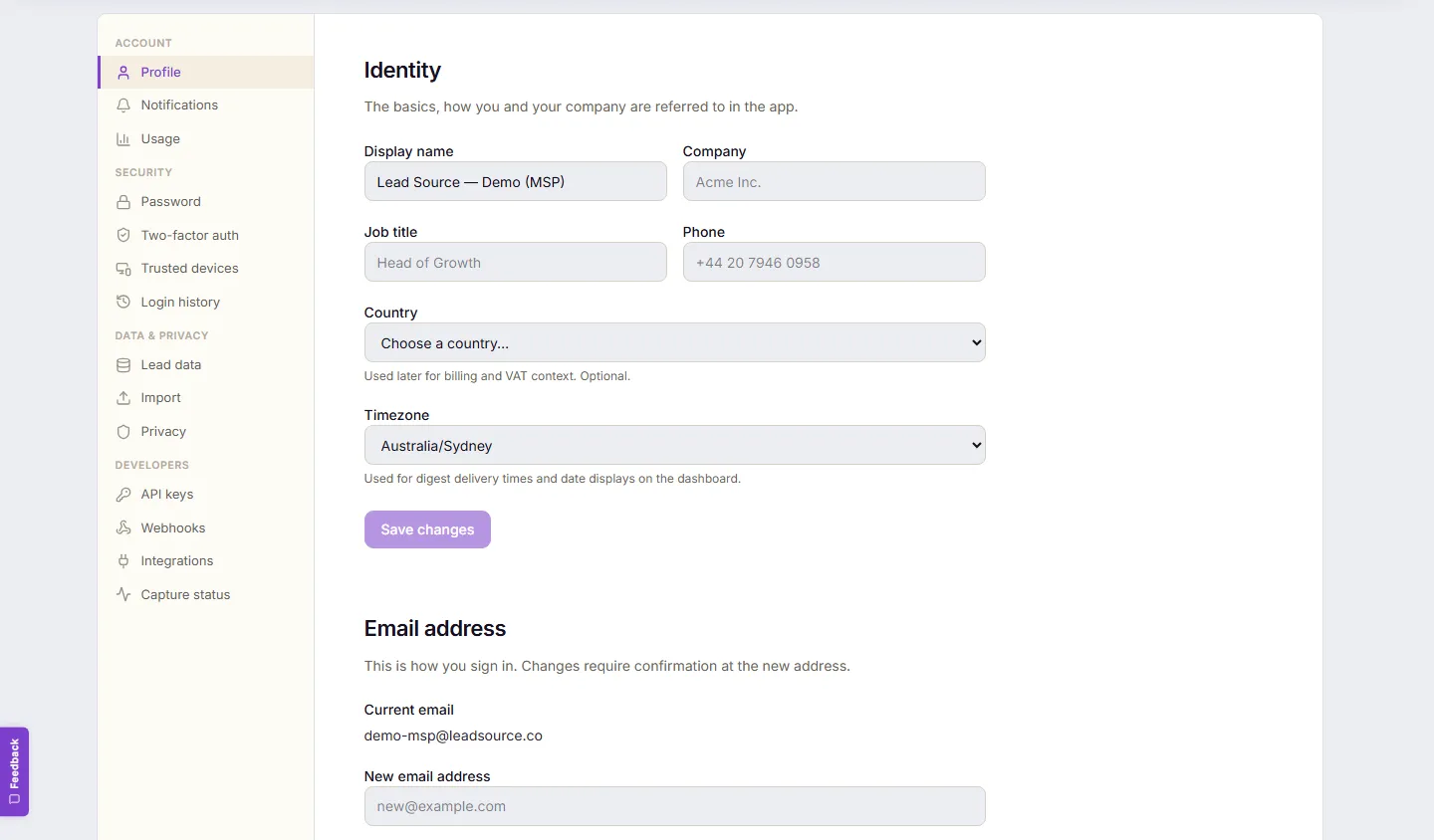
- Go to Settings → Profile, section Email address.
- Enter the new address under New email address and select Update email.
- You’ll see: “Check your inbox at {new address} for a confirmation link. Your sign-in email won’t change until you click it.”
- Open the confirmation link at the new address.
Expected result: your sign-in email is the new address. Until you click the link, nothing changes — you keep signing in with the old one.
Common problems
Section titled “Common problems”- “That’s already your email.” You entered your current address — no change needed.
- The confirmation email never arrived. Check the new address’s spam folder; re-run the steps to resend.
- Changed your mind before confirming? Do nothing.
- Lost access to your current sign-in address entirely? If you’re still signed in on any device, change the email from there. If not, contact us and we’ll verify you another way.