

Manage your team
Team members get their own logins — no shared passwords.
Applies to: the Growth plan (up to 10 seats). Who can do this: the account owner.
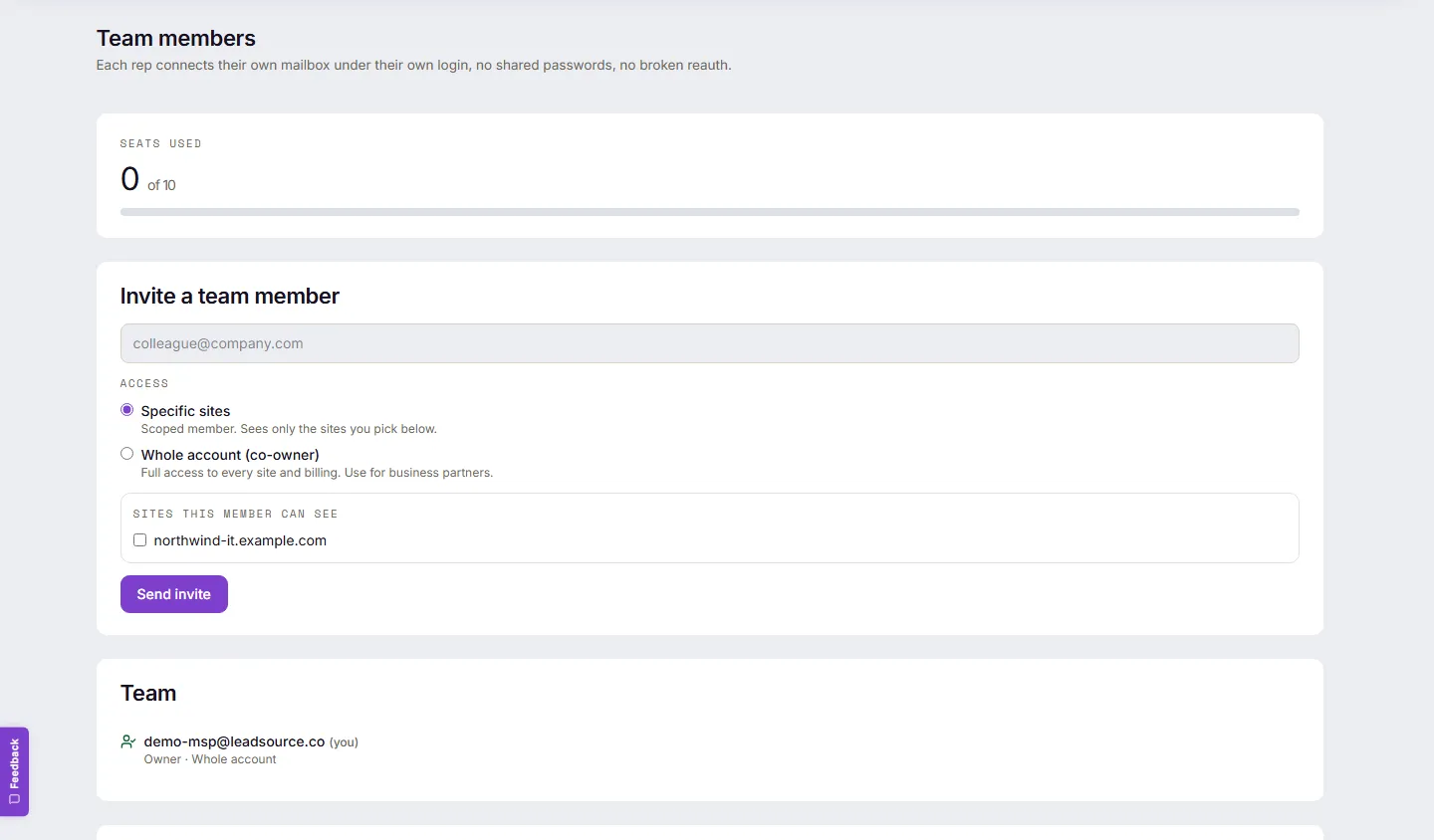
Invite someone
Section titled “Invite someone”- Open Team in the top navigation.
- Under Invite a team member, enter their email.
- Choose their Access:
- Specific sites — a scoped member who sees only the sites you pick. Right for reps and contractors.
- Whole account (co-owner) — full access to every site and billing. Use for business partners.
- Select Send invite.
Expected result: “Invitation sent.” They appear under Team with a Pending badge and an expiry date — invites last 7 days (Resend refreshes the clock). They accept from the email, set a password, and land inside your account.
Seats: the Seats used card counts active members plus pending invites against your 10. At the limit, the invite form makes way for a note with the contact route for more.
Change what someone can see
Section titled “Change what someone can see”Open a member’s scope control on the Team page, tick sites on and off (or All sites), and save. The role itself isn’t editable — to switch someone between member and co-owner, remove and re-invite them.
Remove someone
Section titled “Remove someone”Select the remove icon on their row and confirm — “{email} will immediately lose access to this account and its sites. You can re-invite them later if needed.”
Expected result: their access ends immediately — nothing further loads or can be changed from the moment you remove them.
Transfer ownership
Section titled “Transfer ownership”Owners see Transfer account ownership on the Team page: pick the member, acknowledge you’ll lose owner access, and both of you receive confirmation emails. The transfer completes only when both confirm (links expire after 7 days). The recipient needs a Growth account of their own.
Common problems
Section titled “Common problems”- “This person is already a member of your account.” They’re already in — check the list, including Pending.
- An invite expired. Select Resend — same role and site scope, fresh 7-day window.
- The invitee says the link doesn’t work. “This invitation has expired. Ask the team owner to send a fresh invite.” means exactly that — resend from your side. If they already have a Lead Source login under that email, the invite screen directs them to sign in first and it attaches from there.